User guide
Workspace, members and roles
Organizations, inviting your team, what each of the six roles can do, and how switching between workspaces works.
Everything in Brandora belongs to an organization: your brands, campaigns, roster, monitoring projects, reports and billing. This page explains how to get your colleagues into that organization, what each of the six roles can actually do, and how to move between workspaces when you belong to more than one.
Organizations and what lives in one
An organization is the tenant boundary. Data never crosses it: a creator you added, a note you wrote, a rate you recorded and a campaign you ran are visible only to members of the organization that owns them. Requests that reach for another organization's records are refused, and for someone else's roster the refusal is a plain "not found" rather than "forbidden", so nobody can use the error to confirm a record exists elsewhere.
You can belong to several organizations at once, with a different role in each. The workspace tile in the top right shows the organization you are in and your role in it. Open it to see every workspace you belong to, and select one to switch. The switch is instant, does not reload the page, and is remembered in this browser.
That same menu is where you cross into the creator portal, if you also hold a creator account. See Account, portals and your data for what the two portals are and how to move back.
Inviting your team
Open /members. Admins and Owners see an invite form at the top; everyone else sees the member list read-only.
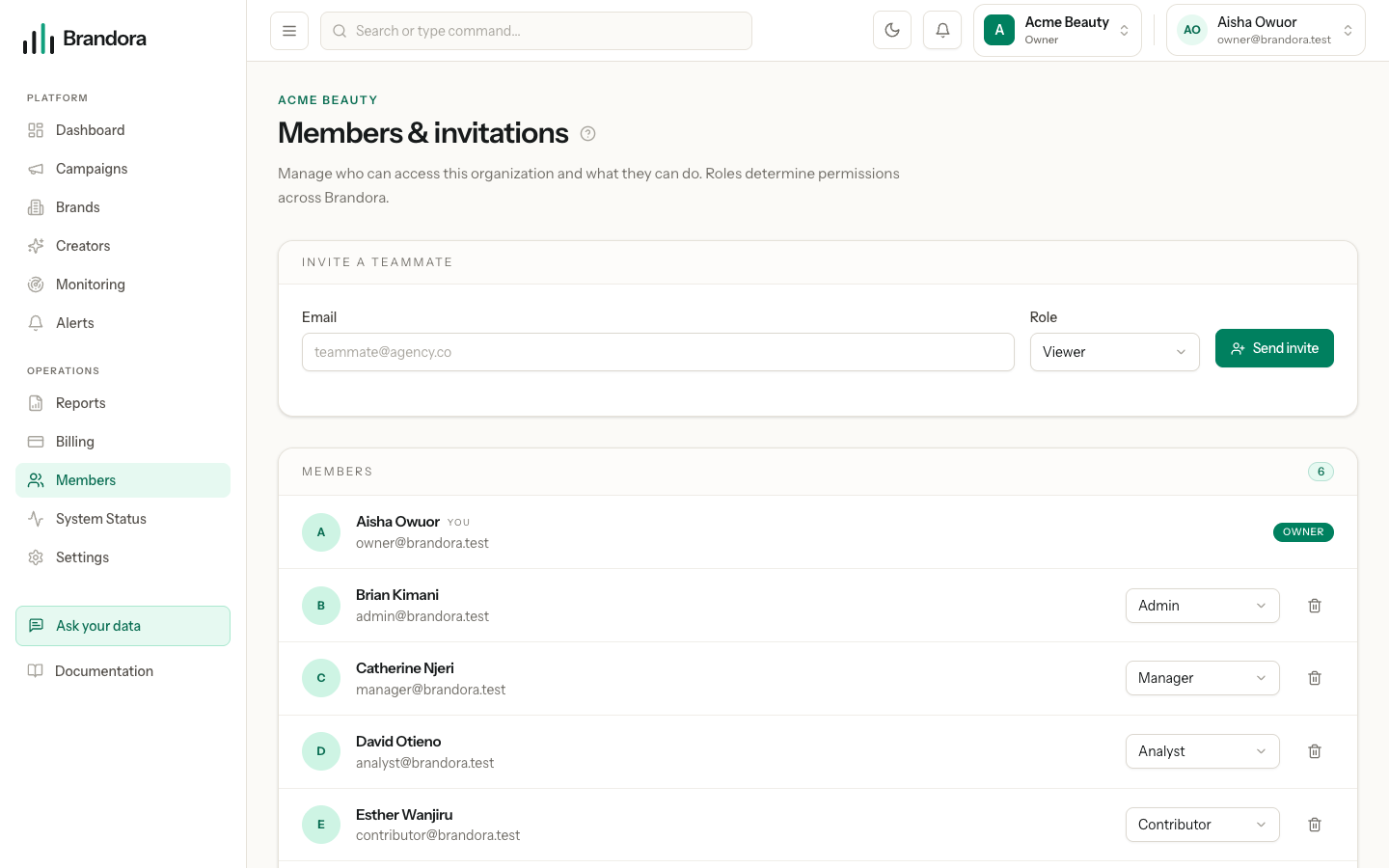
Enter an email address, choose a role, and send. What happens next:
- Brandora emails an invitation link to that address. The link carries a single-use token that is never shown in the app and never stored in readable form.
- The invitation expires after 7 days. An expired link tells the recipient so rather than failing silently.
- Inviting the same address again supersedes the earlier invitation: the old one is revoked, so only one invitation per address is ever live.
- To accept, the recipient must be signed in with the same email address the invitation was sent to. A different account gets a clear mismatch error and no membership.
- You cannot invite someone who is already an active member, and you cannot invite anyone as an Owner.
- Revoke a pending invitation with the button on its row. Revoking is immediate and the link stops working.
The pending invitations card lists only invitations that are still open, with the expiry date on each. Once someone accepts, they move into the members list and the person who invited them gets an email saying so.
Note: Plans describe a number of team members, but the invitation flow does not check that number today. Keep track of your team size yourself if it matters to your billing.
The six roles
Roles are a strict ladder. Each role can do everything the roles below it can do, plus more. There are no per-feature toggles.
| Role | Rank | In one line |
|---|---|---|
| Owner | 1, highest | Everything an Admin can do, and cannot be removed while they are the last Owner |
| Admin | 2 | Runs the workspace: members, settings, billing, audit, and destructive deletes |
| Manager | 3 | Runs the work: brands, campaigns, deliverables, approvals, roster and rates |
| Analyst | 4 | Reads everything and works the alert queue |
| Contributor | 5 | Reads everything and annotates mentions |
| Viewer | 6, lowest | Reads everything in the workspace, changes nothing |
Note the order carefully: an Analyst outranks a Contributor. A Contributor can tag and annotate mentions but cannot acknowledge alerts; an Analyst can do both.
Here is what each capability actually requires. This table is the enforcement, not a UI convention.
| Action | Minimum role |
|---|---|
| View campaigns, brands, roster, monitoring, alerts, reports and billing | Viewer |
| Run creator discovery and open a creator profile | Viewer |
| Use the Ask your data assistant | Viewer |
| Create and manage your own saved monitoring views | Viewer |
| Tag a mention, add or edit your own mention note | Contributor |
| Acknowledge or resolve an alert event | Analyst |
| Create and edit brands, aliases, products | Manager |
| Create and edit campaigns, briefs, budgets, deliverables, contracts, tracking links | Manager |
| Assign creators to a campaign, make approval decisions, issue guest review links | Manager |
| Add to, edit and remove from the roster; import creators; send creator invitations | Manager |
| Read and write creator rate cards | Manager |
| Create creator lists and add or remove their members | Manager |
| Create and edit monitoring projects, query rules, competitors; import mentions manually | Manager |
| Create and edit alert rules | Manager |
| Create a report and freeze a snapshot | Manager |
| Manage Creator Connect connections and creator data authorizations | Manager |
| Delete a brand, including bulk delete | Admin |
| Delete a monitoring project | Admin |
| Edit or delete someone else's mention note or saved view | Admin |
| Invite, remove and change the role of a member | Admin |
| Rename the organization | Admin |
| Read the audit log and provider costs | Admin |
| Change the plan, run checkout, manage payment methods | Admin |
| Request a data export or deletion | Admin |
Two entries deserve a second look. Rate cards are Manager and above to even read, so a Viewer or Analyst can see a creator's roster row, tags and internal notes but never their rates. And internal notes on a roster entry are readable by a Viewer, so treat them as team-wide, not private to you.
Warning: The sidebar shows every navigation item to every role. A Viewer who opens Monitoring sees a permission-denied card explaining that their role does not include it, rather than a missing link. Do not treat a visible menu entry as proof of access.
Changing a role or removing someone
On each member row, Admins and Owners get a role selector and a remove button. Two rows are deliberately not editable there: your own, so you cannot lock yourself out, and any Owner's. The role selector only offers roles at or below your own, so only an Owner can promote someone to Owner.
Brandora protects the last Owner. Demoting or removing the final Owner of an organization is refused, with an explicit "you cannot demote the last owner" message. Promote someone else to Owner first if you need to hand over.
Both actions notify the person by email: one when their role changes, one when they are removed. Every membership change is written to the audit log, which Admins can read.
Organization settings
/settings holds the organization profile. It is a short page on purpose.
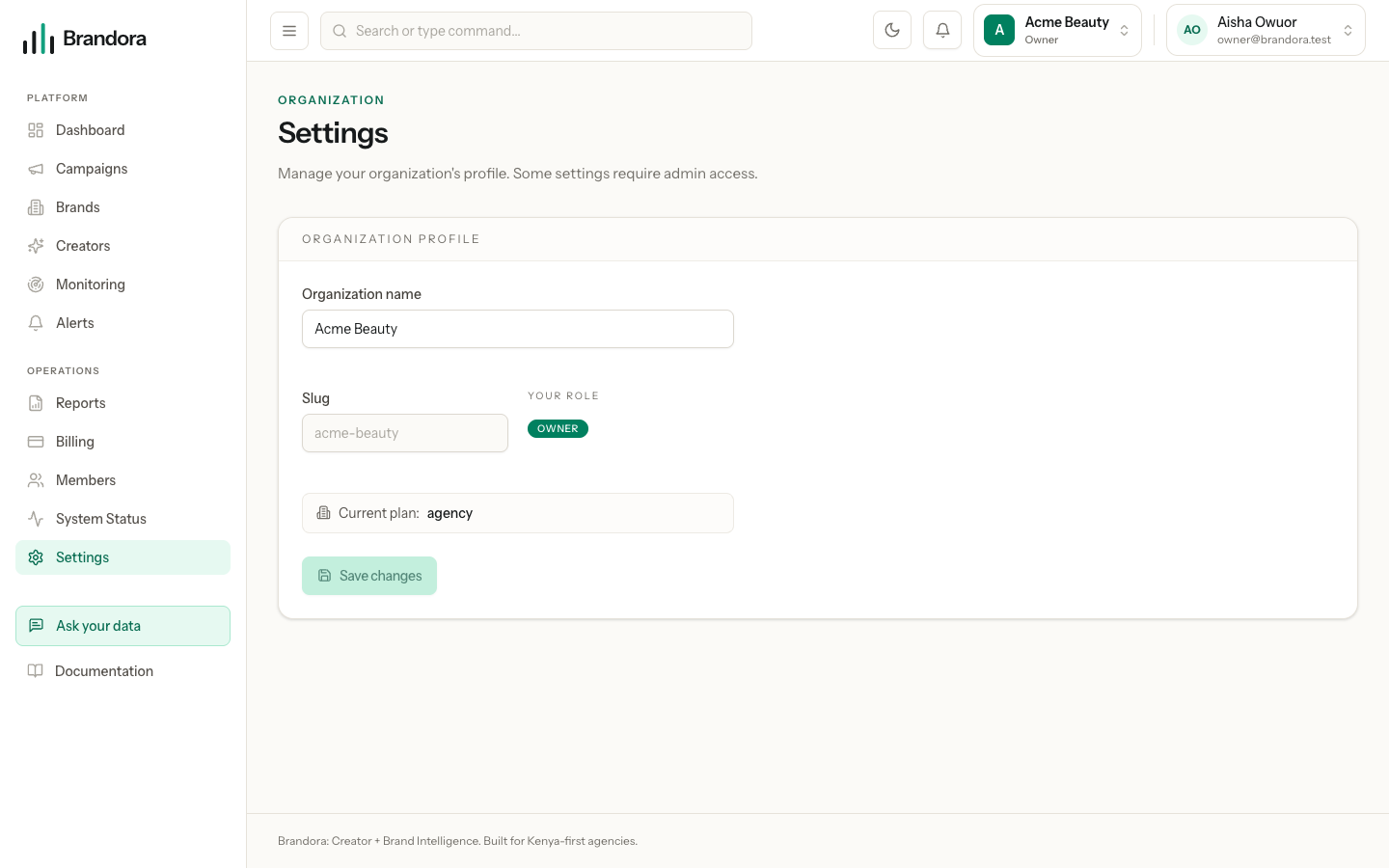
| Field | Editable |
|---|---|
| Organization name | Yes, Admin and above |
| Slug | No, set when the workspace is created |
| Your role | No, shown for reference |
| Current plan | No, changed on /billing |
There is no timezone, currency or locale setting here. Your billing currency is fixed when you subscribe rather than chosen on this page, and everything else about how the workspace runs lives on the feature that owns it: members on /members, plan and usage on /billing, monitoring configuration inside each project.
If you are not an Admin, the page tells you so and names your role rather than showing a form that would fail on save.