User guide
Your creator roster
The private list of creators you work with, with rate cards, tags, notes and commercial terms that never leave your organization.
Your roster is the private list of creators your organization works with: who they are, what you pay them, what you have learned about them, and where each relationship stands. Nothing on it is visible to another organization, and nothing on it is published. This page covers what the roster stores, what each status means, and the ways a creator gets onto it.
What the roster is, and where to find it
Brandora keeps two things apart. The creator is a person record that can be shared: a creator in the platform catalog can appear in more than one agency's search results, and a creator who has claimed their account owns that record. The roster entry is your organization's relationship with that person: their status with you, your tags, your notes.
The roster is not in the sidebar. Reach it from the Roster creators tile on the dashboard, or from the Roster button in the header of the Creators page. Its own address is /roster.
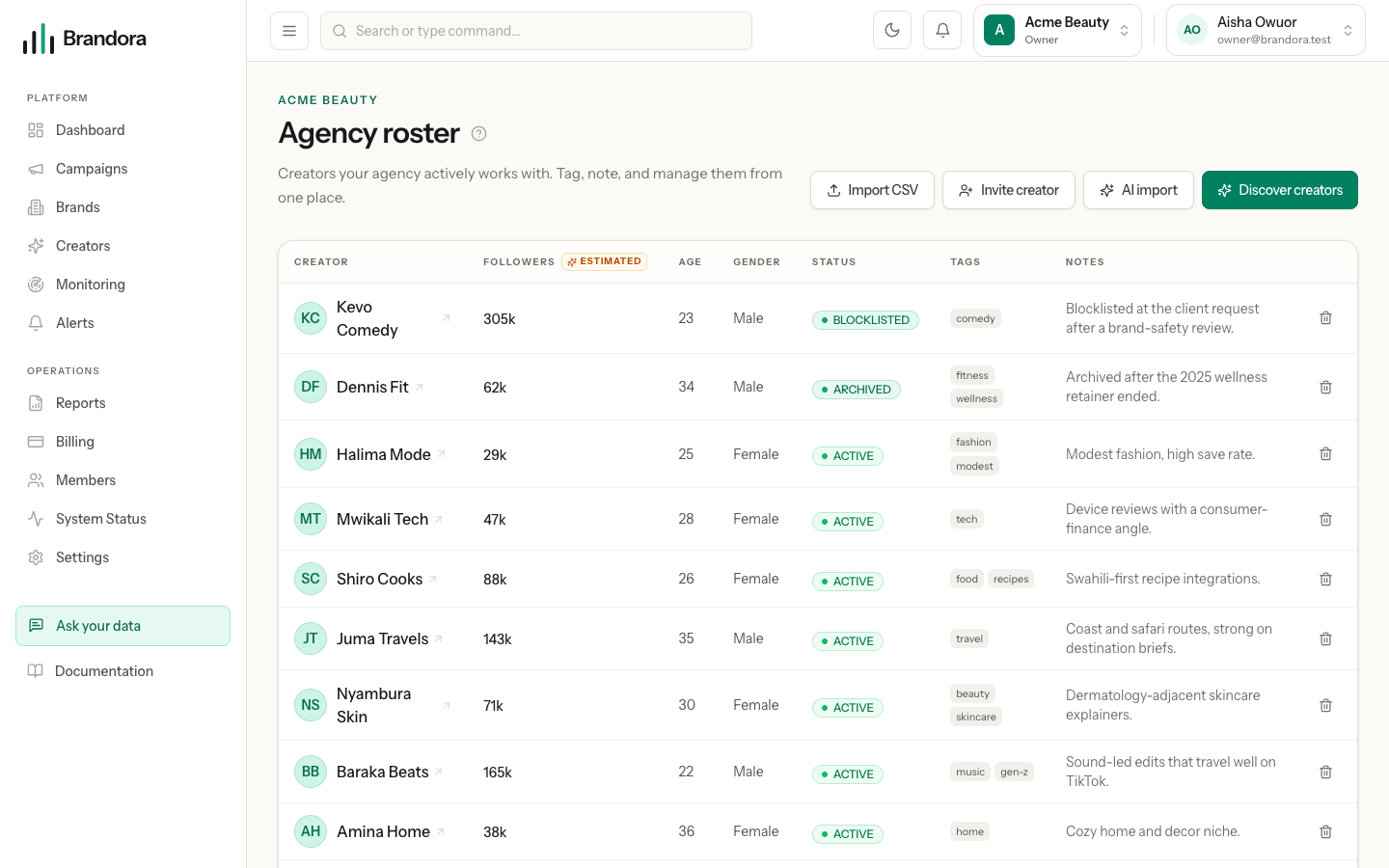
The table lists every roster entry at once. There is no search, filter, sort or pagination on this screen today, so a large roster is a long page.
| Column | What it shows |
|---|---|
| Creator | Avatar and name, linking to the full creator profile |
| Followers | The sum across the creator's known accounts, or a dash when none is known |
| Age | An exact age if you recorded one, otherwise the age band, otherwise a dash |
| Gender | Male, Female or a dash |
| Status | The relationship state, with a sub-line on invited rows |
| Tags | Your own labels |
| Notes | Your internal note, clamped to two lines |
Roster status
| Status | Meaning | Counts toward your plan |
|---|---|---|
ACTIVE | A creator you are tracking and working with | Yes |
INVITED | You have invited this person and they have not completed a claim | No |
ARCHIVED | Kept for the record, not currently worked with | No |
BLOCKLISTED | Deliberately excluded from your work | No |
Only ACTIVE entries consume the tracked creators allowance on your plan, so archiving someone you no longer work with frees a slot without losing the history.
Warning: INVITED is not a status anyone can pick. It is written only by sending a creator invitation, and the API refuses a request that tries to set it by hand. That guarantee is the point: an invited row always corresponds to a real invitation, so you can trust the status without checking.
An invited row is deliberately sparse. Followers, age and gender show dashes, because nothing is known about the person yet, and the status carries a sub-line saying what the invitation is doing: awaiting reply, accepted but not joined yet, declined, expired, withdrawn, or could not be delivered. The row never shows the email address the invitation went to, or who sent it, even to teammates who can read the roster.
What stays inside your organization
Your commercial and internal data about a creator is organization-private and stays that way even when the creator is a claimed, publicly listed profile.
| Data | Who can read it |
|---|---|
| Tags and internal notes | Viewer and above |
| Exact age and age band, when your organization owns the creator record | Viewer and above |
| Rate cards | Manager and above |
| The address an invitation went to | Manager and above |
Note: Internal notes are readable by every member down to Viewer. They are team notes, not personal ones. Rates are stricter: a Viewer or Analyst can see a creator's roster row and notes but cannot see their rate cards at all.
None of this reaches creator discovery, the platform catalog, the public creator directory, or a creator's public media kit. Age and gender in particular are never discovery filters and are never published.
Followers, and what is verified
The Followers column is labelled as an estimate from your roster import, because that is what it usually is: a number somebody typed into a spreadsheet. A row picks up a first-party marker only when Creator Connect is actively collecting from one of that creator's accounts, which is a statement about your data pipeline rather than about a blue tick: a verified account you are not collecting from is still an estimate here. When no figure exists at all, the cell shows a dash rather than a zero, because a zero would assert a measurement nobody made.
Age and gender
Both are manual, organization-private fields an agency types or imports. They are never provider-derived and never verified.
Gender is recorded as Male or Female only. Age is recorded in one of two shapes: an exact age, a whole number from 13 to 100, or an age band, one of 18-24, 25-34, 35-44 or 45+. The exact age wins in the display when both are present, and a band is never converted into an age or the other way round. A band in the table carries a tooltip saying a range was recorded rather than an exact age.
Rate cards
Rates live on the creator's profile page rather than the roster table. Open a creator from the roster and use the rate cards section.
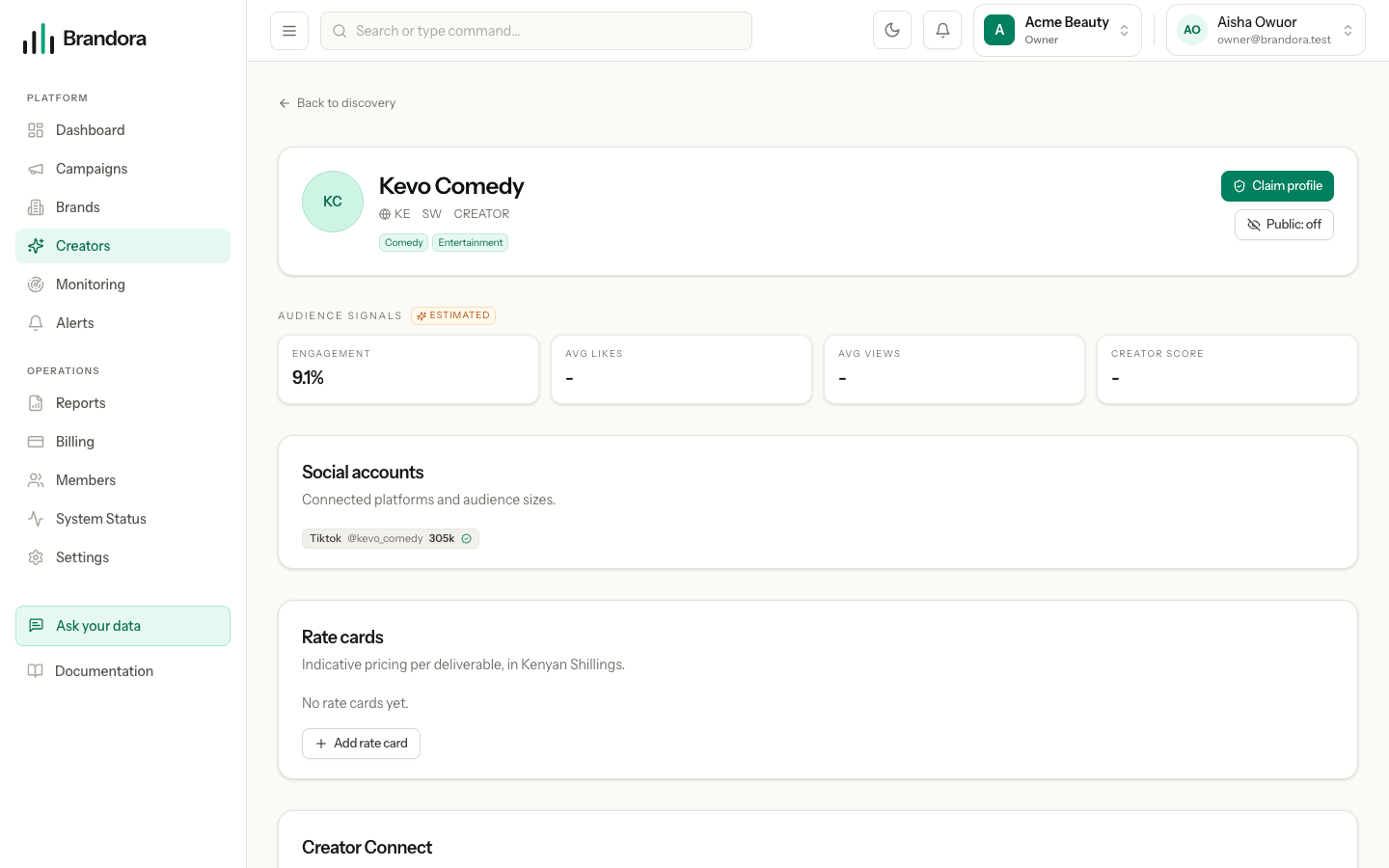
A rate card is one price for one deliverable type, held as an exact amount in KES. The types offered are Instagram post, Instagram reel, Instagram story, YouTube video, TikTok video and Bundle. A creator can hold only one rate per type, and adding a second for the same type is refused as a duplicate. There is no edit action: to change a price, delete the card and add it again.
Adding creators
There are four routes onto the roster, all Manager and above.
- Import a spreadsheet. Import CSV on the roster opens a direct importer, and AI import opens a wizard that maps unfamiliar column names for you. See Importing creators.
- Add from discovery. Search the catalog on
/creators, select rows, and use the bulk Add to roster action. See Creator discovery. - Invite someone already in the catalog with Invite on the Creators page.
- Invite someone who is not in Brandora at all with Invite creator on the roster, or Invite someone new on the Creators page.
Inviting a creator who is not in Brandora
Give a name and an email address. Email is the only live channel: choosing WhatsApp or SMS is refused before anything is written, because there is no provider behind them yet, rather than being accepted and silently dropped.
Brandora then creates a private creator record owned by your organization, an INVITED roster row, and the invitation, all in one step. The invitation runs for 14 days. The address you typed is stored on the invitation and nowhere else: no email or phone column is ever added to the creator record or the roster row. Revoking an invitation, or letting it expire, keeps both the creator record and the roster row, and only frees the slot so you can invite the same person again.
What changes when a creator claims
Acceptance is not the end of it. The person still has to create a creator account, verify ownership of a social account, and claim the profile. When that claim lands, every INVITED roster row for that creator flips to ACTIVE, including rows in other agencies' workspaces, and the row starts consuming your tracked creators allowance. ARCHIVED and BLOCKLISTED rows are left exactly as they are, and your tags, notes and rate cards survive untouched and stay private.
Editing and removing
The roster table has two row actions, both at the end of the row and both Manager and above: Block and Remove. Remove deletes the roster entry outright rather than archiving it, and the creator record, along with any rate cards, stays behind.
Blocking a creator
Block is how you say "never put this person in front of us again" and have the product act on it. It asks for a reason first, optional but worth typing, then sets the row to BLOCKLISTED and records who decided it, when, and why. The table shows the status as a red pill with your reason underneath, so the next person to open the roster reads the decision rather than guessing at it.
Once a creator is blocked, four things stop happening in your workspace:
- They no longer appear in creator discovery results. The catalog still holds them; your search simply skips them.
- Assigning them to a campaign is refused, from the campaign page and from the invitation flow alike.
- Adding them to a creator list or shortlist is refused.
- Inviting them, whether from a campaign, the Creators page or the roster, is refused.
Each refusal says plainly that the creator is blocked in this workspace and to unblock them on the roster first, so a teammate who runs into one learns why rather than meeting an unexplained error. The rule is enforced in the API, not by hiding buttons, so it holds however the request arrives.
Note: A block is private to your workspace and nothing else. No other agency sees it, no other agency's discovery results change, and the creator is never told. It is a decision about who you work with, not a rating and not a report. If what you actually want is to tell other agencies about a collaboration, that is a creator review, which requires evidence that the work shipped and gives the creator a right of reply.
Nothing is deleted. The roster row, your tags, your notes, your rate cards and the campaign history all stay exactly where they are, and a blocked row stops consuming your tracked creators allowance the moment you block.
To unblock, use the same row action, which becomes Unblock on a blocked row and does not stop to ask for anything. It clears the block record rather than leaving a stale "blocked by Aisha in March" hanging off an active row, and the creator returns to discovery, assignment, lists and invitations. One thing to expect: coming back to ACTIVE takes a tracked creators slot again, so if your plan is at its limit the unblock is refused until you free one, in the same way an import at the limit is.
Warning: There is still no way to edit a roster entry's tags or notes from the web app, and no way to archive someone through the interface. Tags and notes are set when you import: a re-import merges tags and replaces a note when the new note is not blank. Plan your tag vocabulary in the spreadsheet rather than expecting to fix it afterwards in the table.