User guide
Getting started
What Brandora does, how the workspace is laid out, and the first fifteen minutes after you sign up.
Brandora is one workspace for the work agencies and brand teams currently spread across spreadsheets, WhatsApp threads and email: finding creators, briefing campaigns, collecting and approving content, proving what shipped, and watching what people say about the brand. This page covers what you get when you sign up, how the workspace is arranged, and the order to do things in so nothing dead-ends.
What Brandora does
Brandora connects five things that usually live in five different tools: a brand, the creators you work with, the campaigns you run for that brand, the content those campaigns produce, and the mentions the brand attracts. Because they are linked objects rather than free text, a creator on your roster can be assigned to a campaign, owe a deliverable, submit a version for approval, and appear in a report, without anyone retyping a name.
Two principles run through the product and are worth knowing on day one.
Figures are labelled by where they came from. A follower count you typed into a spreadsheet is shown as your own estimate; a figure collected from an account the creator connected is marked first-party. Brandora never quietly swaps one for the other.
Creator data belongs to the creator. Your roster, your notes, your rates and your tags are private to your organization. A creator's verified numbers reach you only when that creator authorizes it.
Creating your workspace
Sign up at /register with your name, work email and a password of at least eight characters. There is no separate "create an organization" step: Brandora creates one for you, named after you, and makes you its Owner. A workspace called Ada Lovelace workspace is normal for a solo signup, and an Admin can rename it later on /settings.
A verification email goes out when you register. Nothing in the app is blocked while you wait for it.
If you picked a plan on the pricing page before registering, a 14 day trial starts with no card required on the plans that offer one. If you signed up without picking a plan, you are not on a trial: you get a small free allowance instead, and it is tight.
| Allowance | Free floor with no plan |
|---|---|
| Brands | 1 |
| Active campaigns | 1 |
| Monitoring projects | 1 |
| Tracked creators on your roster | 10 |
| AI assistant actions per month | 100 |
Only ACTIVE roster entries and ACTIVE campaigns count against those numbers, so archived work does not eat your allowance. See Billing, plans and usage for the paid tiers.
How the workspace is laid out
The left sidebar has two groups, and every member sees every item regardless of role. Permission is enforced on the page you land on, not by hiding the link.
| Group | Item | Path | What it is for |
|---|---|---|---|
| Platform | Dashboard | /dashboard | Live view across campaigns, monitoring, creators and plan usage |
| Platform | Campaigns | /campaigns | Briefs, assignments, deliverables, approvals |
| Platform | Brands | /brands | The brands your campaigns and monitoring hang off |
| Platform | Creators | /creators | Creator discovery, and the way through to your roster and lists |
| Platform | Monitoring | /monitoring | Mention projects and their feeds |
| Platform | Alerts | /alerts | Alert rules and the events they raise |
| Operations | Reports | /reports | Frozen, shareable snapshots |
| Operations | Billing | /billing | Plan, entitlements and usage |
| Operations | Members | /members | Teammates, roles and invitations |
| Operations | System Status | /status | Provider health and ingestion freshness |
| Operations | Settings | /settings | The organization profile |
Three screens you will use a lot are deliberately not in the sidebar. Your roster lives at /roster, creator imports at /roster/import, and creator lists at /creator-lists. Reach the first from the Roster creators tile on the dashboard, and all three from the buttons in the header of the Creators page.
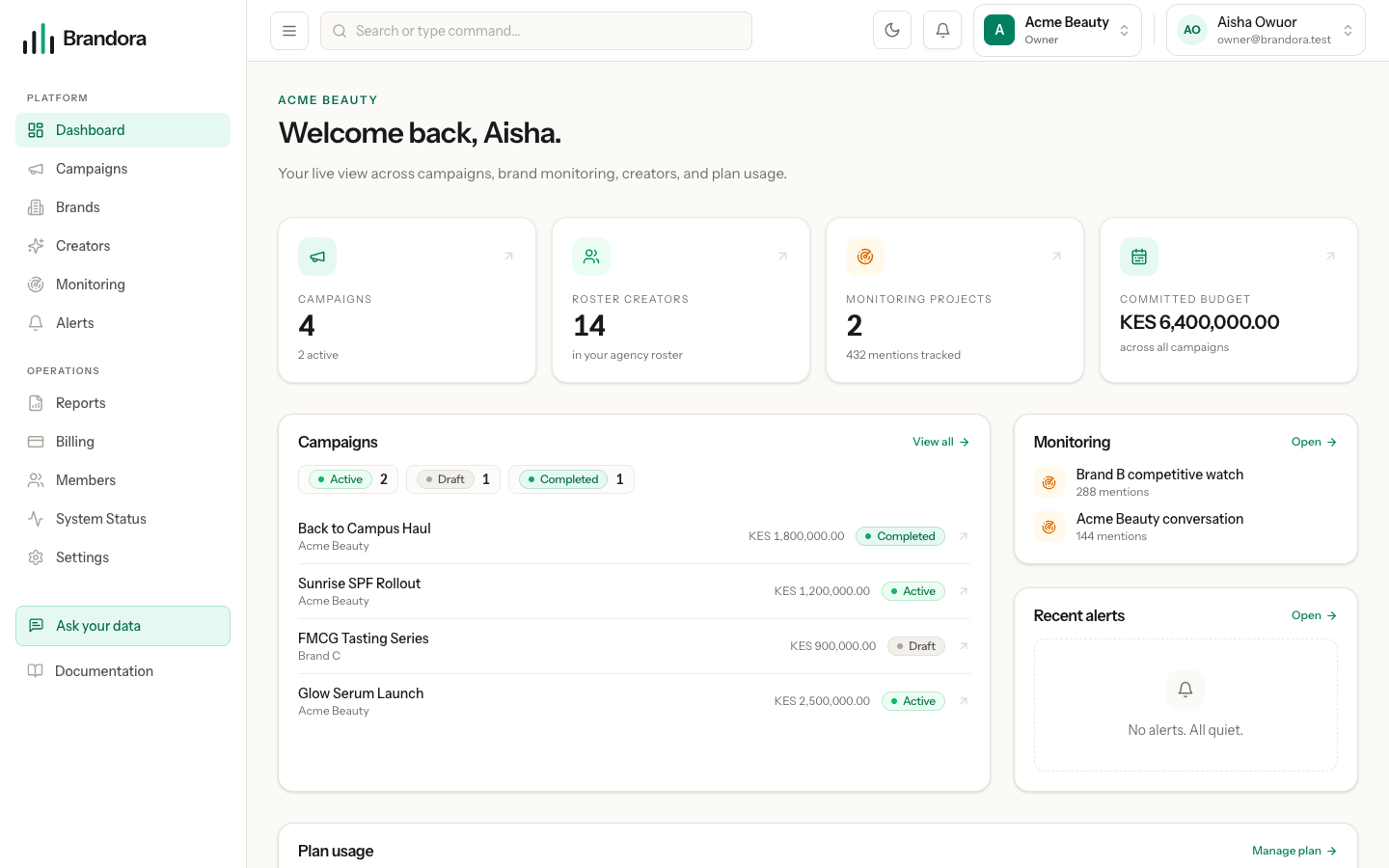
The dashboard counters are computed from your own lists, so they match what you see on the pages they link to. The Plan usage card shows the four allowances Brandora actually meters: monitoring projects, active campaigns, brands and tracked creators.
Your first fifteen minutes
Do these in order. The first step is not optional, and skipping it is the most common way to get stuck.
- Create a brand at
/brands. Only a name is required. Both campaigns and monitoring projects require a brand, and with zero brands their create dialogs have nothing to select, so a new workspace cannot create either. See Brands, aliases and competitors. - Invite your team at
/members. Pick the role deliberately: it decides what each person can change. See Workspace, members and roles. - Build a roster. Import a spreadsheet you already have, or search the creator catalog and add people from there. Start at Your creator roster and Importing creators.
- Create a campaign at
/campaignsagainst the brand you made, then add creators and deliverables to it. See Campaigns and briefs. - Set up monitoring at
/monitoringif you want the mention feed. The project seeds its first query rule from the brand name.
Warning: The empty state on the campaigns page invites you to create a campaign, but the create dialog needs a brand to select. If the Brand dropdown is empty, go to /brands first.
Asking your data
The Ask your data button sits at the bottom of the sidebar and opens a drawer over whatever page you are on. Any member, down to Viewer, can use it. It is disabled until an organization is active.
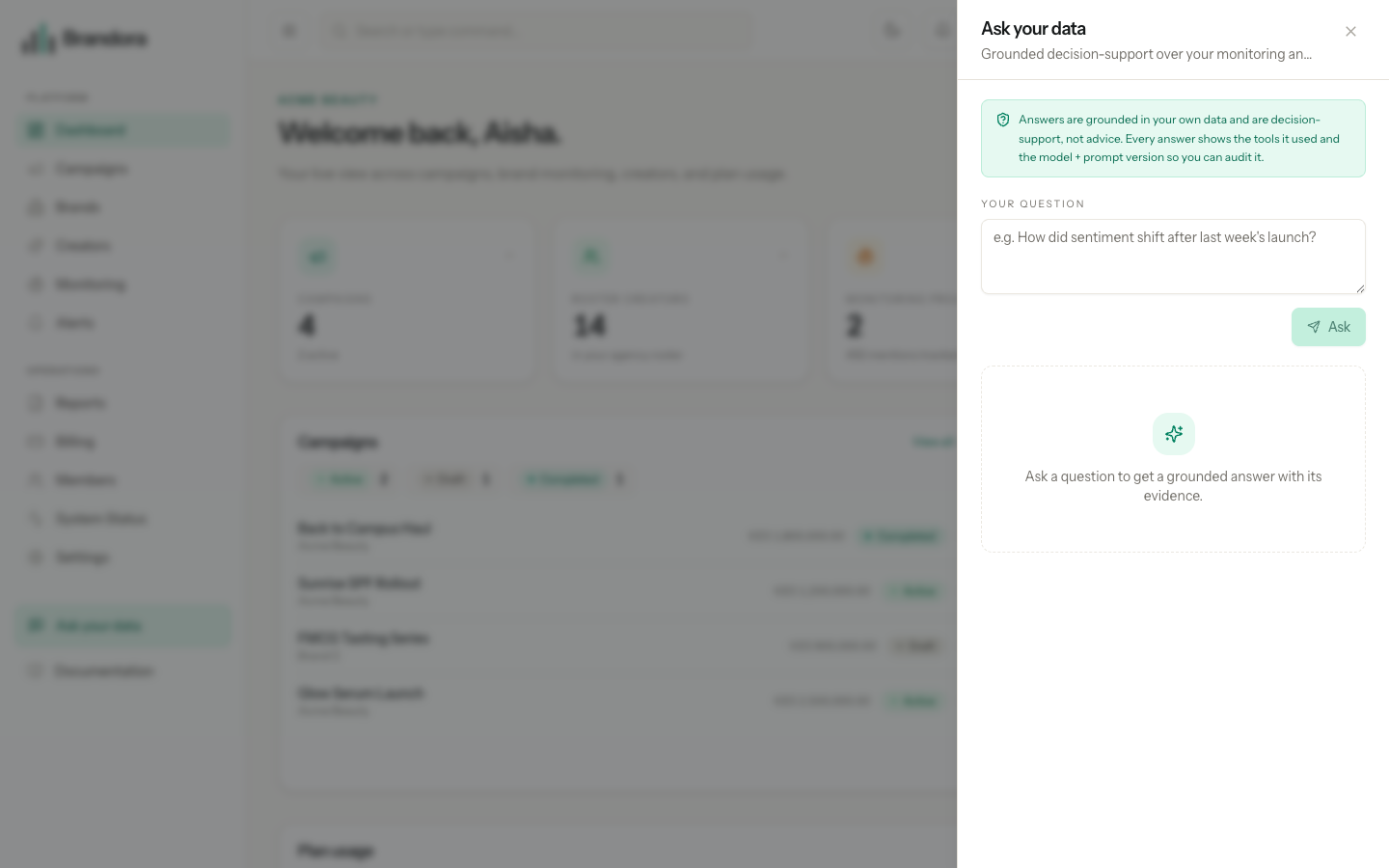
Ask a plain question such as "How did sentiment shift after last week's launch?" and Brandora answers from your own data. Under the drawer, the assistant cannot write SQL and cannot reach another organization's records: it calls a fixed set of eight typed tools that are each scoped to your workspace, and the model only ever sees the JSON those tools return. Every answer shows the tools it used, the model, the prompt version and the token count, so you can audit it.
Two things to expect. Which data the assistant looks at is chosen from the words in your question, so asking about "deliverables" and asking about "mentions" reach different tools. And if your monthly AI allowance runs out or the model is unavailable, you still get an answer, composed offline from your data with an amber note saying the wording is simpler than usual. The numbers in it are exact either way, but treat the assistant as decision support, never as the source of truth for a metric.