Creator guide
Contracts and rate cards
Review and sign a campaign contract, and understand what an agency can and cannot see about your rates.
When a brand assigns you to a campaign and sends the contract, it arrives in your portal for you to read and answer. This page covers what you see, what accepting does, and what a workspace can and cannot see about your rates.
Where your contracts live
Open /creator/contracts. Each card is one campaign assignment, and shows the brand, the campaign, your role, the agreed fee, the usage rights and exclusivity terms, the contract text or a document to download, and the deliverables tied to your role with their type, platform, quantity and due date.
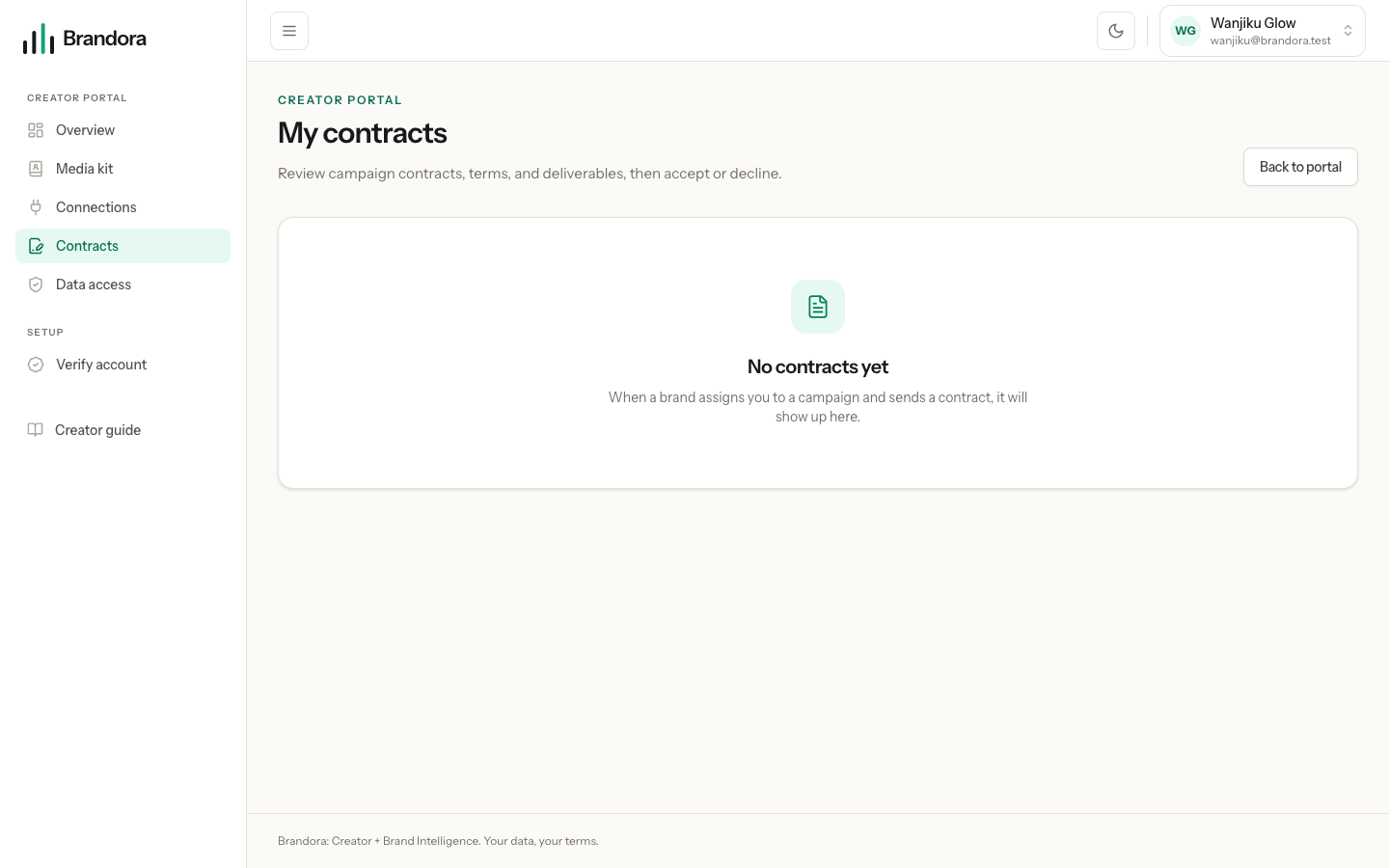
If the card shows an assignment with no contract yet, the brand has added you to the campaign but has not sent anything to sign. There is nothing for you to do until they do.
Reading the terms
Four things are worth reading before you answer:
- Agreed fee. The amount and currency the brand recorded for your part. If it says not specified, ask them to add it before you sign.
- Usage rights. Where and for how long the brand may use what you make.
- Exclusivity. Whether you are agreeing not to work with named competitors, and for how long.
- Deliverables. How many pieces, on which platform, due when. This is what the brand will be tracking against.
The contract body, and any document attached to it, are the agreement itself. Download the document if there is one, and keep your own copy.
Accepting or declining
Only a contract that has been sent to you can be answered. Press Accept to sign it, or Decline, where you can add a reason the brand will see.
Accepting records your signature and the time, moves your place on the campaign to confirmed, updates the brand's committed budget, and emails their managers. Declining records the decline and your reason and does the same in reverse.
Warning: A contract can be answered once. After you accept or decline, the buttons are gone and the link in the email stops working. If you answer by mistake, contact the brand and ask them to cancel the contract and send a new one, which is something only they can do.
You cannot edit the terms yourself. If the fee, the rights or the exclusivity window are wrong, decline with a reason, or ask them to change it and resend before you answer. Once a contract is signed its terms are final and only its lifecycle status can move.
Signing from the email
The brand can also email you a review link. It opens a page with the same terms and the same two buttons, works without an account, and lets you type your name as the signer. Signing there has exactly the same effect as signing in the portal.
The link expires after a set period, fourteen days in a standard setup, and it is single use: answering consumes it. If it has expired, ask the brand to send it again rather than trying to reuse it.
What a workspace can see about your rates
There are two separate sets of rates, and they never mix.
| Your published rates | The workspace's rate card for you | |
|---|---|---|
| Who writes it | You, on your media kit | A manager inside that workspace |
| Who sees it | Anyone, when you mark a rate public | Only members of that workspace |
| What it is for | Telling brands your starting point | Their own planning and budgeting |
A workspace cannot see or edit your published rates beyond reading the public ones, and it cannot change what you charge. You cannot see what a workspace has written in its own rate card, its notes or its tags about you, and neither can any other workspace. Commercial notes stay inside the workspace that wrote them.
What you do see is the agreed fee on your own assignment, which is the number that matters, and the terms in the contract.
Note: Your published rates are a starting point, not a price list a brand can hold you to. The fee that counts is the one written into the contract you sign.
Getting paid
Brandora does not move money. No card, no wallet, no payout runs. The brand pays you the way you agreed with them, by bank transfer, mobile money or anything else.
What the brand can do inside Brandora is record what it owes and what it has paid against the campaign, and where withholding tax applies, calculate it and export a return-ready file for its own tax filing. Those payment records live in their workspace and are not shown in your portal, so if you need a statement of what has been paid, ask them.
Delivering the work
Submissions and approvals happen inside the brand's workspace today. The creator portal has no upload screen, so send your drafts the way you agreed with them, and they will load each version in and run the review.
If you also happen to be a member of that workspace, you see the creator and client comment lanes on your own submissions and can write in both. The internal agency lane is never visible to you on your own work, whatever role you hold.